> For the complete documentation index, see [llms.txt](https://docs.cielo.finance/llms.txt). Markdown versions of documentation pages are available by appending `.md` to page URLs; this page is available as [Markdown](https://docs.cielo.finance/trading/overview.md).
# Overview
Introduction to Solana and Bas trading in the Cielo web app and Telegram
Cielo makes it easy to trade Solana and Base tokens directly within the web app. With your trading wallet (displayed in the top right) funded, you can start buying and selling tokens throughout the web app and Telegram:
* [**Feed (Classic)**](https://app.cielo.finance/feed): Click **Quick Buy** alongside any Solana or Base token swap that appears to instantly buy the token shown.
* [**Feed (Lite)**](https://app.cielo.finance/lite): This same functionality is also supported within the Lite Feed.
* [**Trending**](https://app.cielo.finance/trending): Click Quick Buy to purchase the token shown or click the token name to open its chart and access advanced trading options.
* [**Portfolio**](https://app.cielo.finance/portfolio): In **My Positions**, you can sell any token you are currently holding by clicking the red Sell button.
* Telegram Integration: Trade in Telegram, including quick buys.
The **Quick Buy** button allows you to instantly purchase a token without wasting time or even opening the chart. The default Quick Buy value can be edited by clicking the option at the top of the Feed or Trending page:
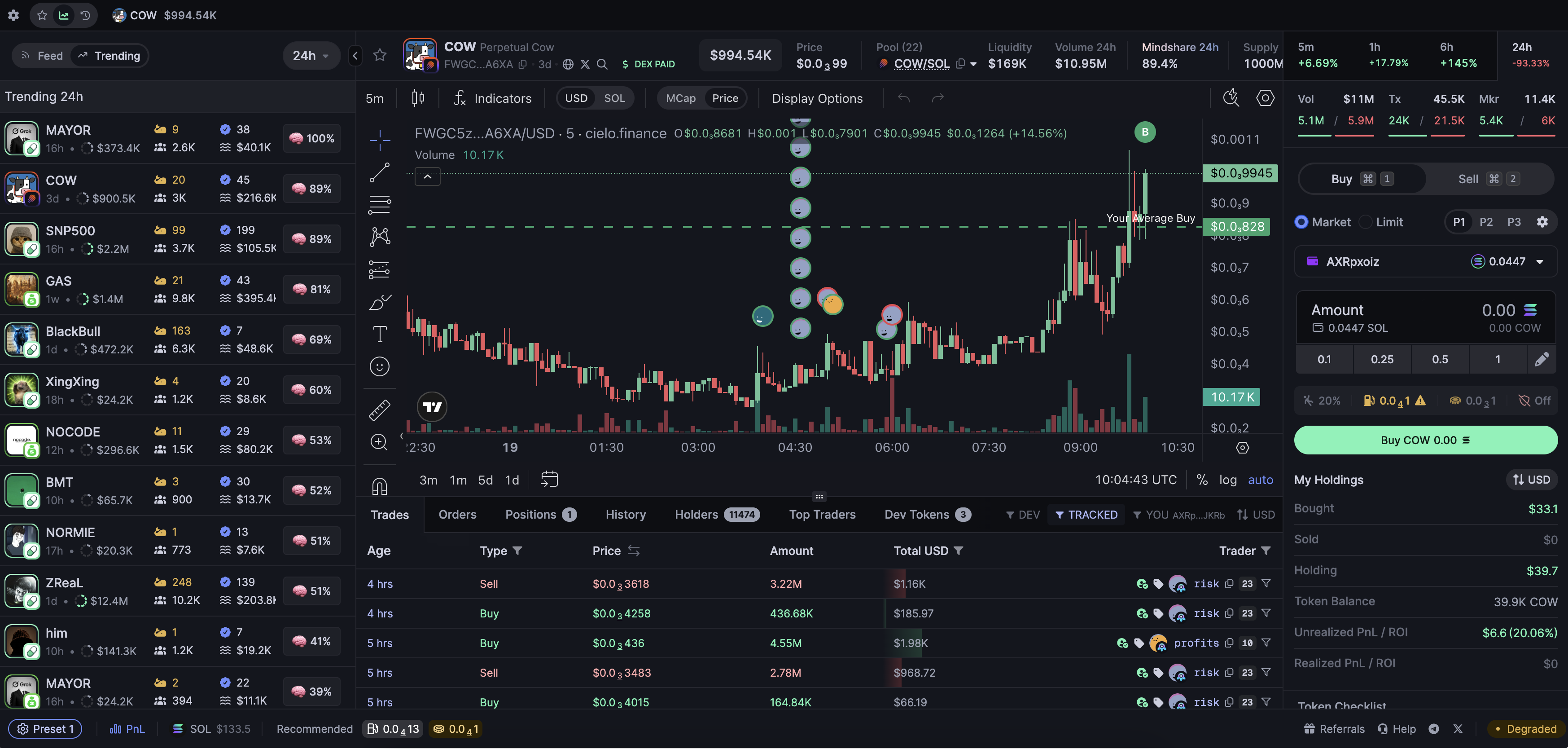
To sell a token you have purchased using Quick Buy, or to access more advanced buy and sell options – as well as view the latest charting information for the token in question – click on the token name. This will open the full terminal view which will look like this:
### Navigation
This full page view – "terminal" – is divided into the following three sections:
* **Left**: Designed for token discovery. Switch between Feed and Trending to view the latest tokens being swapped by wallets you're tracking (Feed) and by all Cielo users (Trending).
* **Center**: Chart view showing standard token information and trading information, with the latest trading activity made by you and your tracked wallets displayed beneath.
* **Right**: Order execution section. Here you can buy and sell the token in question and adjust your trading settings.
### Fees
Cielo charges a 0.6% fee on manual trades executed in the web app and Telegram. Trades executed by your trading agents carry a 1% fee instead. See [Trading agents](https://docs.cielo.finance/trading-agents/overview) for how agents work.