> For the complete documentation index, see [llms.txt](https://docs.cielo.finance/llms.txt). Markdown versions of documentation pages are available by appending `.md` to page URLs; this page is available as [Markdown](https://docs.cielo.finance/wallet-tracking/my-wallets.md).
# Tracking
[**Tracking**](https://app.cielo.finance/tracking) is your mission control. It’s where you add, edit, and delete wallets and lists. It’s also where you control the Telegram/Discord alerts you receive for wallets and lists you’re following.
## Adding Wallets
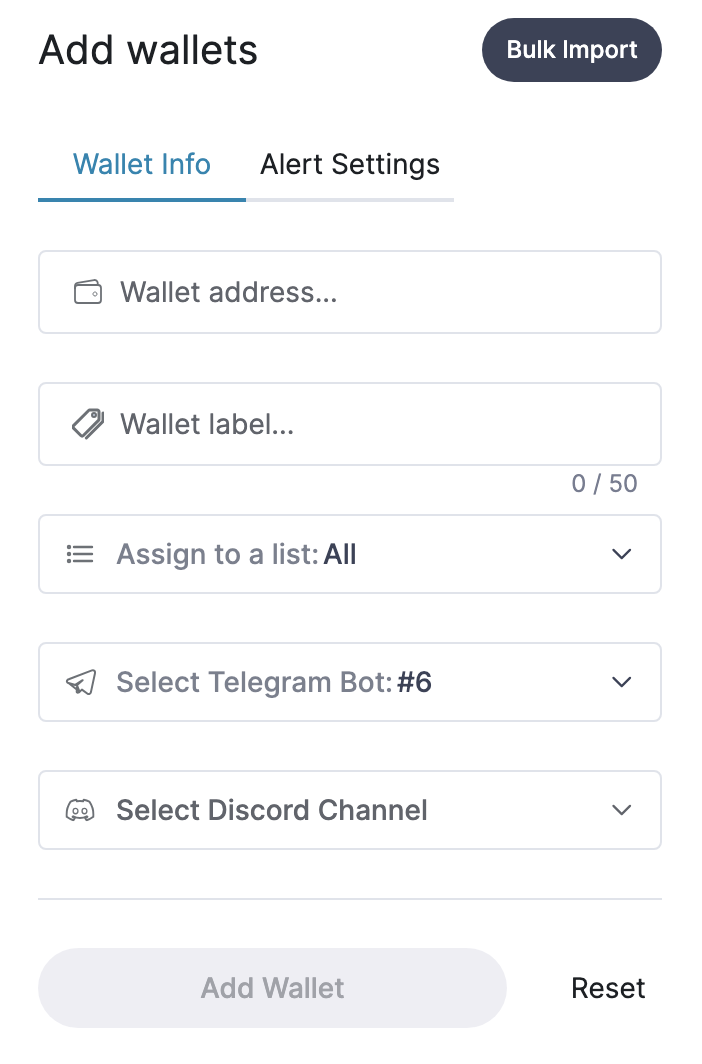
Click **Add Wallets** in the top right to add a wallet to your Cielo feed. You can add an Ethereum address, Solana address, ENS, or .sol.
Add Wallets popup
\
Enter the wallet address and add an optional label for identification e.g. *Vitalik*. If you wish to add and configure Telegram/Discord bot alerts for the wallet, select **Alert Settings** and follow the instructions. Here you can specify notifications based on tx type, chain, and minimum USD value for swaps. You can also check the **New Trade Alerts** box to receive an alert when the wallet trades a token for the first time – see [below](#new-trade-alerts) for more information on this feature.
## Editing Wallets
Tick the checkbox at the top of the page to select all wallets or select individual wallets and make edits to them. You can also use the tabs at the top of the **Tracking** page to filter wallets by list, type, chain, and whether they are currently unassigned to a list.
After selecting one or more wallets, click the pencil icon to make edits. When you're done, click **Save Changes**.
You can alternatively select all wallets within a specific list. To do so, click the **Lists** tab at the top of the page and select the desired list. Then tick the **All Wallets** box.
When you have selected the wallets you wish to bulk edit, click **Alert Settings** or **Token / NFT Filters** *(Pro+Whale)* at the bottom of the page.
\